Visualize
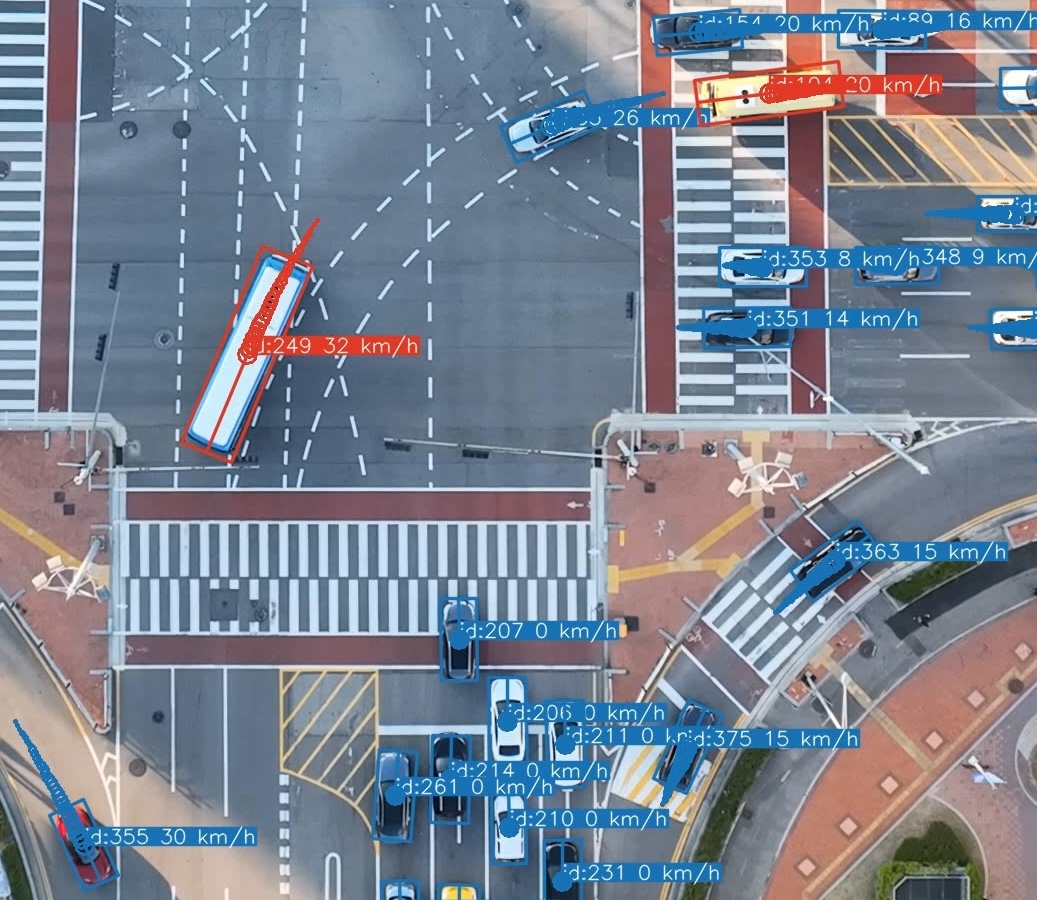
geotrax visualize draws the extracted tracks onto the video: bounding boxes, IDs, optional class names and confidences, and fading trails whose thickness shows how recent the movement is. With georeferenced results it can also show each vehicle's speed and lane. It reads the outputs of extract and, for speed and lanes, of georeference.
Examples
# Live preview only, without writing a video
geotrax visualize path/to/video.mp4 --show --no-save

# Save with confidences, hiding cars (class 0)
geotrax visualize path/to/video.mp4 --save --class-filter 0 --show-conf

# No labels or trails, hiding buses and trucks
geotrax visualize path/to/video.mp4 --show --hide-labels --hide-tracks --class-filter 1 2

# On the stabilized video, without speeds
geotrax visualize path/to/video.mp4 --show --viz-mode 1 --hide-speed

# Lane IDs instead of speeds (needs georeferenced results)
geotrax visualize path/to/video.mp4 --save --show-lanes --hide-speed

# Rotated boxes on the original and on the stabilized frame, one video each
geotrax visualize path/to/video.mp4 --save --viz-mode 3 4

# Rename the class labels
geotrax visualize path/to/video.mp4 --show -cn 0=vehicle 1=bus 2=truck 3=bike
Saving is on by default (visualization.save), so --show alone opens the preview and writes the video; add --no-save for a preview only. Press q in the preview window to stop. Inside geotrax batch, --viz-only re-renders the videos from existing results without repeating extraction.
Rendering modes
--viz-mode takes one or more modes and renders one video per mode.
| Mode | Drawn on | Boxes |
|---|---|---|
0 |
the original (unstabilized) video | detection boxes |
1 |
the stabilized video | detection boxes |
2 |
the static reference frame | detection boxes |
3 |
the original video | rotated boxes |
4 |
the stabilized video | rotated boxes |
Mode 2 uses the stabilization anchor recorded in the run metadata, so the background matches the stabilized coordinates even if visualize runs with a different --cut-frame-left. Modes 1, 3 and 4 need the stabilization transforms from extraction.
Rotated boxes (modes 3 and 4)
Modes 3 and 4 replace the axis-aligned YOLO detections with rotated bounding boxes: each box is sized to the vehicle's estimated physical length and width and rotated to its travel direction. The heading comes from the camera-motion-free stabilized trajectory; mode 3 projects the result back onto the original frame, while mode 4 draws directly on the stabilized frame. They are the most informative modes, and also the most sensitive to data quality:
- Size estimation may fail. Estimates come from frames where the vehicle moves in a nearly straight line over a sufficient distance. Short tracks, near-stationary vehicles, or detections close to the frame edges can yield no usable estimate. The box then falls back to a per-vehicle 25th percentile of the raw YOLO box extents, rotated to the heading, which tends to be inflated during turns, since axis-aligned boxes grow as a vehicle turns. Fallback boxes have a dashed outline.
- Heading may be unreliable. For very slow or stationary vehicles the motion direction cannot be determined; the box is then aligned with the longer side of the raw bounding box.
heading_smoothingandheading_min_speedtune this. - Back-projection distortion (mode 3 only). The rotated boxes are computed in stabilized space and projected back with the inverse stabilization homography; under strong camera motion this can skew them visibly.
- Edge clipping is approximate. While a vehicle enters or leaves the frame, the rotated box is clipped to the visible part of its detection rather than drawn at full size. That part is only known as an axis-aligned box, so the clip edge approximates where the vehicle really leaves the frame.
edge_clip_marginsets how close to the border clipping starts, andedge_clip_smoothingsteadies it over time. - Both modes need extraction to have run with stabilization (
extraction.stabilize: true).
Output
video_file_mode_X.mp4 (<stem><visualization_postfix>_mode_<X>.mp4) in the output folder, one per requested mode. A render that fails part-way deletes its partial video, so batch renders it again next time. Stopping with q or Ctrl+C keeps the partial video, which batch then treats as done; pass --overwrite to render it again.
All display settings live in the visualization section; the options are in the CLI reference.